
Change a vault’s name, colour, default template and sections
Each vault has its own settings: what it is called, its colour, the template new contacts in it start from, and which sections it shows.
To open them, go to the vault and choose Vault settings in its sidebar.
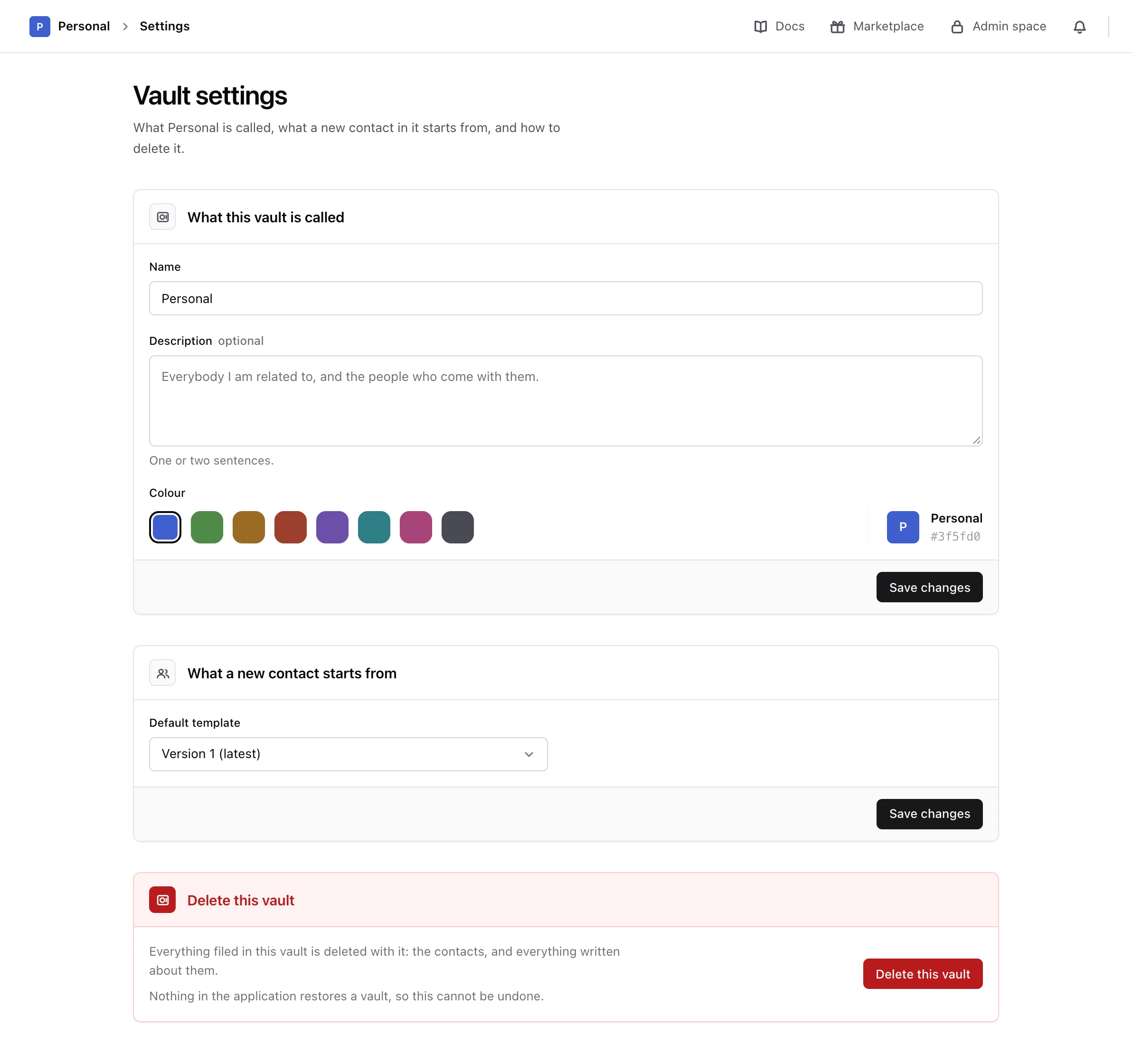
Rename it or change its colour#
-
Change the details
In What this vault is called, change the Name, the Description or the Colour.
-
Save
Choose Save changes under that panel.
Monica says The vault is saved. The new name and colour appear in the vault switcher and on Your vaults straight away. Nothing inside the vault changes.
Choose what a new contact starts from#
A template decides which tabs, sections and fields a contact’s page holds. Each vault has one default template for new contacts, and Add somebody uses it unless you pick another on the form. How Monica is organised explains templates.
-
Pick the template
In What a new contact starts from, open Default template. The list groups the published versions of each of your contact templates, and marks the newest one (latest).
-
Save
Choose Save changes under that panel.
Monica says The template is saved. Only contacts you add from now on start from it: contacts already in the vault keep the template they were written on. To move one of them to another version, see Change what you know about somebody.
Only published versions appear in the list. A draft you are still working on is not offered until you publish it.
If you delete a template that a vault uses as its default, the vault is left without one. The form for a new contact then says This vault has no template for new contacts to start from until you pick another default here.
Choose which sections the vault shows#
A vault’s sidebar has three sections below Dashboard, Reminders and Vault settings:
| Section | What it holds |
|---|---|
| People | The contacts of the vault, the kinds of records you invented, and its groups |
| Things | The possessions of the vault. It appears only once your account has a possession type |
| Knowledge | The notes and lists of the vault |
If you never use one of them in this vault, you can hide it.
-
Flip the switches
In What this vault shows, turn off each section you do not use. The word beside each switch says Shown or Hidden.
-
Save
Choose Save changes under that panel.
Monica says The vault is saved. The hidden sections leave the sidebar of this vault, and a hidden People section also leaves search: the people of this vault are not found from its search, nor when you search every vault. The sidebars of your other vaults are not affected.
Hiding a section deletes nothing, and it is never a way to keep something private:
- A contact, a possession or a note still opens from a link, a reminder or a bookmark.
- The API and the assistants you connect still read and change everything in the section.
- Turning the switch back on and saving brings the section back as it was.
Next steps#
- Delete a vault you no longer need.
- Add a person with the new default.