
Change the choices a list offers
A value list holds the choices a field offers. The Category of a contact picks from Contact categories, a phone number’s label from Phone labels, and so on. Rename the values to the words you actually use, add your own, and put them in the order you want to see them.
Open your settings, and under Personalisation choose Value lists.
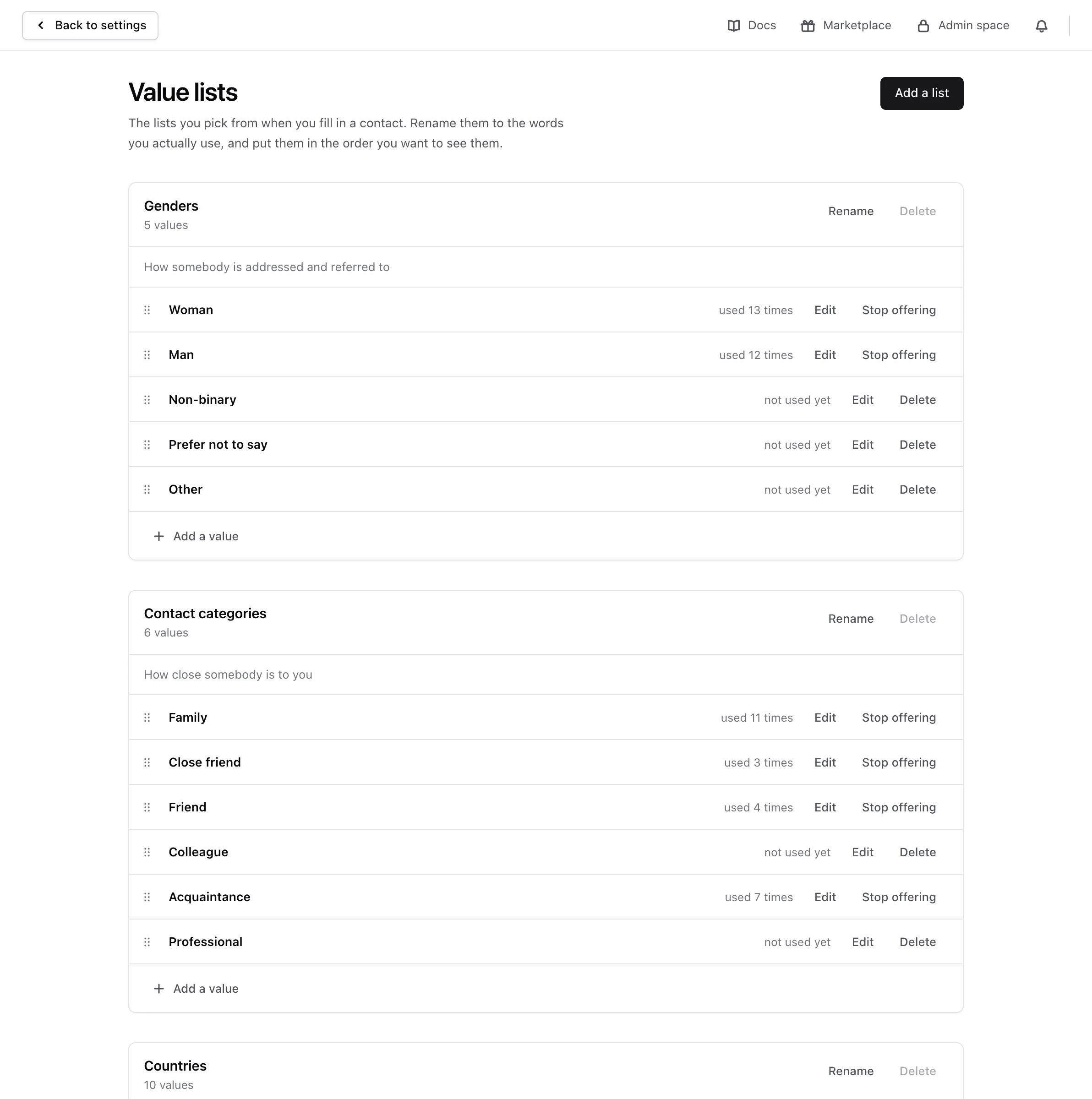
Add a value#
Say you want a category for the people you know from Central Perk. In Contact categories, choose Add a value, type Central Perk regulars in Name of the value, and choose Add. Monica says The value is added, at the end of the list. Drag it to where you want it: the values are offered in the order you put them in.
Rename a value#
Choose Edit on the value, and type the new name. Everything that offers it, and every contact that already has it, shows the new name straight away.
Choose your favourite countries#
The country of an address is picked from a list of every country in the world, each named in your language. Your Countries list decides which ones come first: these are your favourites, so the countries you use most are always one keystroke away. Typing in the box narrows the list, so jap finds Japan whether or not it is a favourite.
To add a favourite, choose Add a value in Countries, pick the country in Country, and choose Add. It is named in the language of whoever reads it, so Monica shows Lithuania to you and Lituanie to somebody reading in French. A country already in the list cannot be added twice.
Monica also uses the country to lay the address out the way that country writes it: the postcode before the town in France, the town, state and ZIP code on one line in the United States.
For a place that is not a country, such as a region you want to treat as one, type its name in Country and choose Add followed by that name, at the end of the list. It is shown exactly as you wrote it, and an address there keeps its parts in the order you typed them. The country of an address works the same way: a name that matches no country can still be recorded, as written.
Note
An address saved before you could pick from every country keeps the country it holds, shown as it was written, until you pick another one.
Retire a value#
What you can do depends on whether anything uses the value. Each value says not used yet, used once, or how many times it is used.
- A value nothing uses can be deleted. Choose Delete, then Delete the value.
- A value in use cannot be deleted, so nothing already written loses its answer. Choose Stop offering instead. It stops being offered in new answers, and every contact that already has it keeps it. Offer again brings it back where it was.
Lists of your own#
Choose Add a list to make a list of your own, such as how you met somebody. A field in a template can then pick its choices from it, as Change a template shows.
A list you made can be renamed or deleted, and deleting it deletes its values. Before you delete one, check that no field in your templates picks from it: Monica does not check this for you. The lists that came with your account cannot be deleted, because Monica itself reads from them.
Next steps#
- Add a field that picks from your list.