
Find people in a vault
Find somebody quickly, and set up the list of people the way you like it.
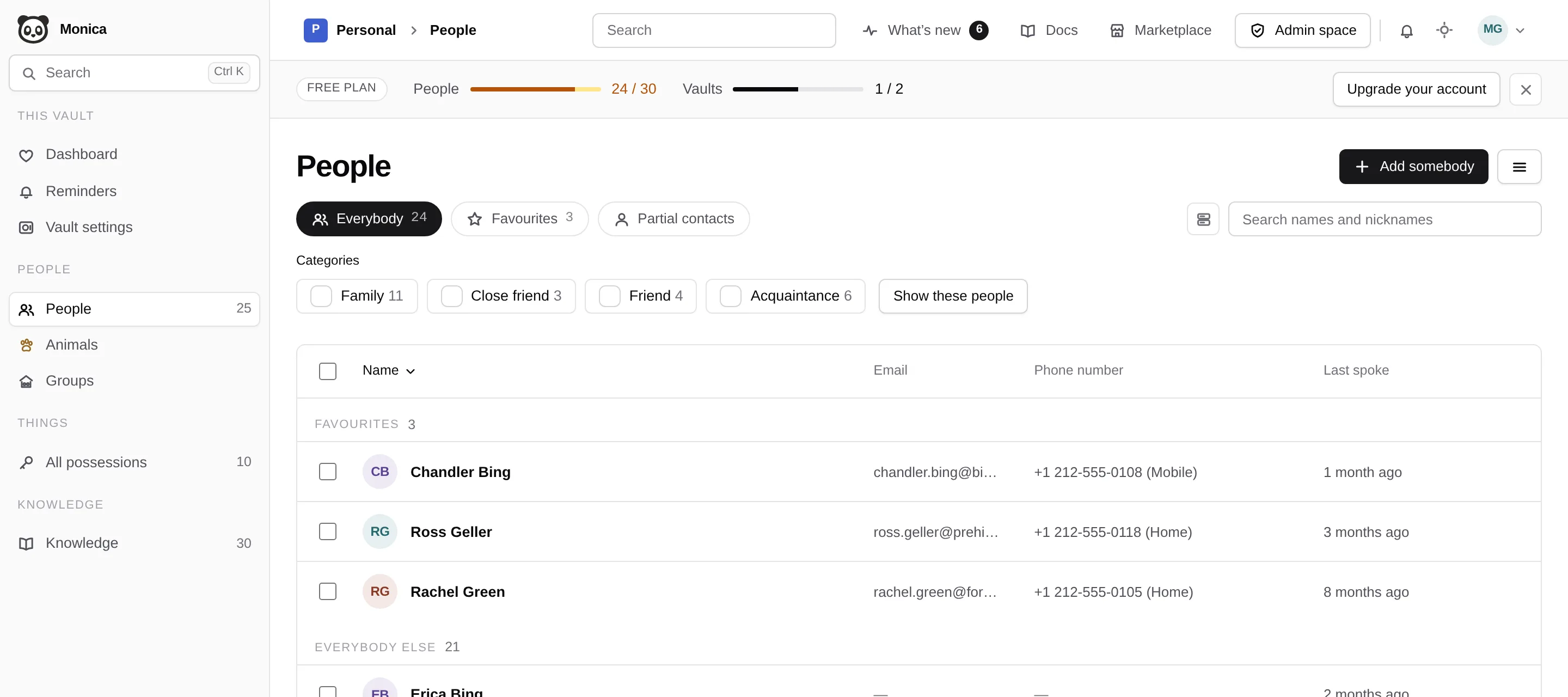
The list lives in each vault. In the vault’s sidebar, choose People. The number next to it counts the people in the vault.
Search by name#
Type in Search names and nicknames, then press Enter. A few letters are enough: chan finds Chandler Bing, and so does Chan Chan Man, his nickname.
Search looks at names and nicknames only, in the vault you are in. It does not look inside sections, so it will not find somebody by their email address or their city, and it does not search your other vaults.
Filter the list#
The buttons above the list choose who it shows:
- Everybody shows every full contact in the vault. Favourites come first, under their own heading, then Everybody else.
- Favourites shows only the people you marked as favourites.
- Partial contacts shows the people you know through somebody else and keep off the main list. They appear nowhere else in the list. Add a person explains partial contacts.
Search works inside the filter you chose. To find a partial contact by name, choose Partial contacts first.
Sort the list#
Choose a column heading to sort by it: Name, Nickname, Last spoke or Added, when those columns are shown. Choose the same heading again to reverse the order. The heading you sorted by is marked with an arrow.
Sorting by Name follows the language you read Monica in. Most languages list people by family name. Icelandic, Sinhala, Tamil and Vietnamese list them by given name. Dutch, German, French, Spanish and Portuguese list a family name such as van Gogh or de la Cruz under its first word that is not a small word such as van, de or la. Japanese lists somebody by the pronunciation of their name, when it is written in hiragana or katakana. Choose your language, formats and time zone explains how to change the language.
Monica remembers your filter and your sort, and opens the list the same way next time.
Choose the columns#
The list shows the name and a few details next to it. By default these are Email, Phone number and Last spoke. You can choose other details, reorder them, and rename their headings.
-
Open the column editor
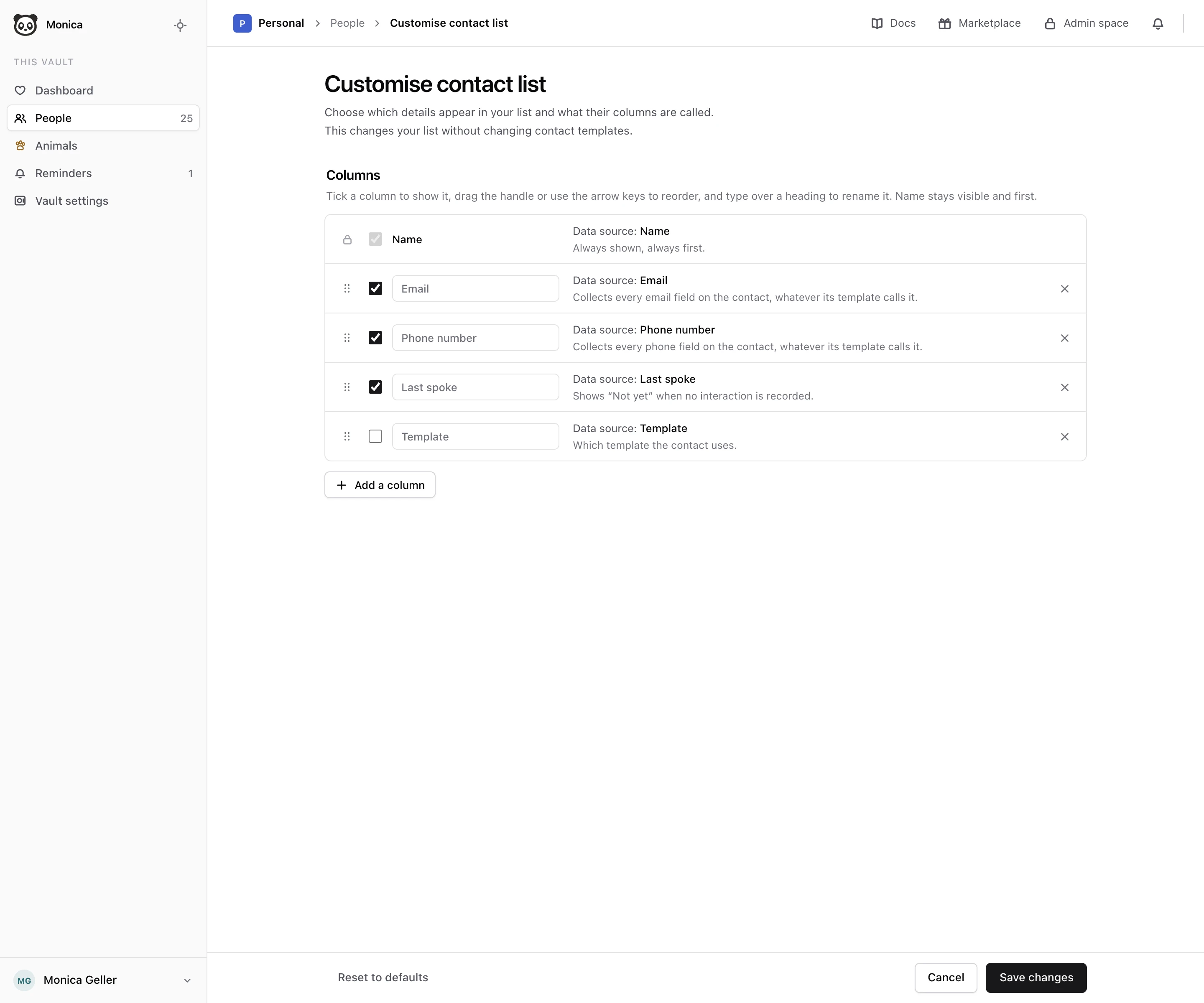
Next to the search box, choose Customise view. The Customise contact list screen opens.
-
Pick the columns
Tick a column to show it, and untick it to hide it. Choose Add a column to add another detail, such as a birthday, the date somebody was added, or any field from your templates.
-
Arrange them
Drag a column by its handle to move it, or focus the handle and use the arrow keys. Type over a heading to rename it. Name always stays visible and first.
-
Save
Choose Save changes.
The columns belong to the vault, so each vault can show different details. Changing them never changes your templates or what is written on anybody’s page. To go back to the columns Monica started with, choose Reset to defaults.
Act on several people at once#
Tick the box at the start of a row to select that person. The box in the heading selects everybody on the page, or nobody when they are all selected already. While somebody is selected, choosing a row selects it instead of opening it.
The filters and the search make room for a bar saying how many people are selected and what you can do with them:
- Change category files everybody selected under the category you choose, in place of the ones they had. Remove category takes their category off. A message says how many people changed, and Undo puts their categories back as they were. A person whose template has no category field is left as they were, and the message says so.
- Delete asks first, naming the people it will delete. Everything written on their records is deleted with them, and there is no undo. The contact that represents you is never deleted, and the others still are.
To clear the selection, choose the cross at the end of the bar, or press Escape. Changing the filter, the search, the sort or the page clears it too. You can act on up to 500 people at once.
Long lists#
The list shows people a page at a time. At the bottom, choose Load more to see the next ones. When everybody is showing, Monica says it is the end of the list.
Next steps#
- Add a person who is not in the list yet.
- Change what you know about somebody you found.